
Setup guide
How to inject local JavaScript and CSS into a website
Kode Injector maps local file:/// paths to a website hostname. Once a rule is enabled, the extension reapplies your files whenever you open or reload that site.
Quick start
- 01
Install Kode Injector
Add the extension from the Chrome Web Store, then open its options page from the toolbar popup or browser extension details.
- 02
Allow access to local files
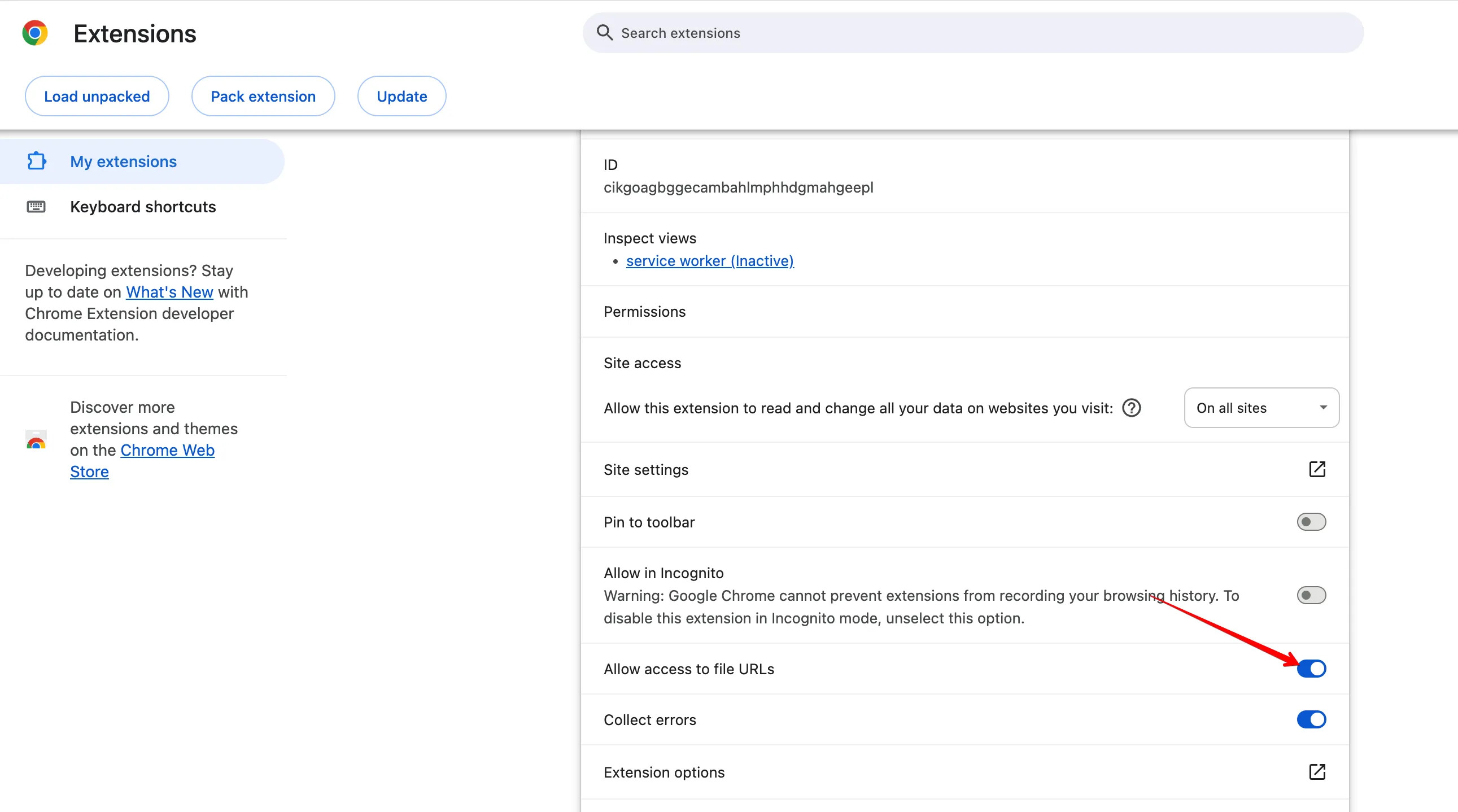
Chrome and Edge require the browser-managed “Allow access to file URLs” switch before an extension can read a file:/// path.
- 03
Create an injection rule
Enter a hostname and choose a local JavaScript file, CSS file, or both. At least one file is required.
- 04
Reload the matching website
When the hostname matches and the rule is enabled, Kode Injector applies the configured files automatically at page load.
Chrome and Edge
Enable local file access once
Open the browser’s extension details for Kode Injector and turn on Allow access to file URLs. Return to Kode Injector Options and use Check again. This is a browser setting; Kode Injector cannot enable it on your behalf.
Example
Add a rule for example.com
Save these files locally, create a rule for example.com, and select their absolute file:/// paths. Reload the site to see the result.
highlight.js
document.documentElement.dataset.kodeInjector = 'active';
console.info('Kode Injector rule loaded');
highlight.css
body {
    outline: 4px solid #16a085;
    outline-offset: -4px;
}Control what runs without deleting rules
Per file
Turn the JavaScript or CSS part of a rule on and off independently.
Per site
Disable every matching rule for the current hostname from the popup.
Globally
Pause all injection and resume it later with one action.
File access by browser
The rule format stays the same
Chrome
Publicly available. Uses browser-managed file access by default; the read-only Helper is an optional advanced method.
Microsoft Edge
Publicly available in Microsoft Edge Add-ons. Uses the same browser-managed file access flow as Chrome.
Firefox
Publicly available in Firefox Add-ons. Reads configured files through the separately installed, read-only Kode Injector Helper.
Safari
Development builds use the read-only helper embedded in the macOS app and explicit folder authorization. Kode Injector is not yet listed in the Mac App Store.
Need the Helper or an unpacked build? See the versioned packages onGitHub Releases.
Ready to create your first rule?
Install Kode Injector from the Chrome Web Store, or check the FAQ if your local file is not being applied.